Search This Blog

Showing posts with label CRM WorkFlow. Show all posts

Monday, March 20, 2017

Update OWNER field in CRM work flow

We would need to update any entity "owner" field in work flow. But in the workflow owner field is locked.
Instead of using "update" step in the work flow use "Assign" step
Now your workflow change the owner field.

Monday, January 4, 2016

Custom workflow -get current user detail

If you have any doubt in the post please post comments. I will try to solve your problem.

 public void Execute(IServiceProvider serviceProvider)
       {
           // Obtain the execution context from the service provider.
           // Obtain the execution context from the service provider.
           //Extract the tracing service for use in debugging sandboxed plug-ins.

           IPluginExecutionContext context =
               (IPluginExecutionContext)serviceProvider.GetService(typeof(IPluginExecutionContext));

           var CurrentUserId =  context.InitiatingUserId;

        }


Saturday, November 14, 2015

Which event fire first Plugin or Workflow

Which event fire first Plugin or Workflow

If you have any doubt in the post please post comments. I will try to solve your problem.

Let us see which event fir first plugin or workflow

We have created a new workflow and configure the workflow  as trigger at the time of new_name of testentity get change and update the same entity.

We also develop the plugin for the same testentity and configure the plugin as trigger at the time of new_name(with the help of filter attribute feature in plugin we can set the plugin to fire only particular attribute/column get fired) of  testentity get change.

Plugin configure as "pre-validation" and  Work-flow configure as Synchronous:

  • Plugin
  • Workflow

Plugin configure as "per-operation" and  Work-flow configure as Synchronous:

  • Plugin
  • Workflow
Post operation:
In plugin, we have to remove the attribute of new_name and update the testentity, otherwise 
infinite loop exception occur because we have  trigger the plugin at the time of new_name changed. In plugin if the new_name   updated in the database  even though new_name not change in the code. Thats while we remove attribute in the entity in plugin code.


Plugin configure as "post-operation with Synchronous"  and  Work-flow configure as Synchronous(new_name remove):

  • Workflow
  • Plugin

Plugin configure as "post-operation with Asynchronous"  and  Work-flow configure as Synchronous(new_name remove):

  • Workflow
  • Plugin

Plugin configure as "post-operation with Asynchronous"  and  Work-flow configure as  Asynchronous(new_name remove):

  • Plugin
  • Workflow

Plugin configure as "post-operation with synchronous"  and  Work-flow configure as  Asynchronous(new_name remove):

  • Plugin
  • Workflow is not triggered


Friday, October 9, 2015

Debug custom workflow in CRM

Debug custom workflow in CRM 

If you have any doubt in the post please post comments. I will try to solve your problem.

To debug the custom workflow in CRM on premises and online is different ways. 
CRM OnPremises
In CRM on-premises sever attach the below process to debug custom workflow.
  • w3wp.exe
  • crmAsyncService.exe
If the custom workflow is configured as "Async" then you have to attach both process in the visual studio and trigger the workflow

If the custom workflow is configured as "Sync" then you have to attach w3wp.exe process in the visual studio.
This is way can't be use in CRM online.

CRM OnLine
With the help of "plugin registration" we can debug the custom workflow.I have mentioned below the steps to debug it.

You must first define/register your custom workflow in the CRM by adding steps in your process.

Step:1 Open the plugin registration tool and connect to CRM online. Click install profiler if it not installed already


Step:2 Once you installed profiler you can select the plugins profiler and click "profile workflow"
Step:3 In profile settings window select your workflow in the workflow lookup and steps will be automatically populate check it. If steps is not populate then you have to use your custom workflow in the CRM and come again and do it. 


Step:4 Check the persist to entity and click ok button

Step:5 After click ok button. If the error occurs
"Automatic workflow cannot be published if no activation parameters have been specified" then you have to configure workflow in CRM as "OnDemand" to solve this error.

Step:6  Goto process now you can see your selected added with name embedded with profiled.


Step:7 Thats it.Now you can trigger the workflow.

Step:8 Once you triggered the workflow. Go to "plugin profiles" and open relevant plugin record.
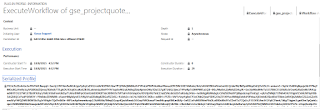
Step:9 Click on the “Serialized Profile” tab and copy the value specified in the “Serialized Profile”
.
Step 10. Create a new text file and copy the “Serialized Profile” value into it and then save the file.
Step 11. Go back to the Plugin Registration Tool, select the profile created earlier and click on the Debug button.

Step 12 In the opened Debug window, select the newly created text file in the Profile Location field and the Custom Workflow Activity assembly in the Workflow Activity field.

Step 13 Open your Custom Workflow Activity project using Visual Studio.

Step 14 Put the break point in your code and attach the debugger to the Plugin Registration Tool process and click the Start Execution button in the Plugin Registration Tool debug window.

The below steps are how to trigger the "OnDemand" workflow in the CRM

Step:1 Open any entity click "Run workflow"

Step:2 Select your custom workflow and click add now workflow get trigger


Manually trigger workflow in CRM

Manually trigger workflow in CRM

If you have any doubt in the post please post comments. I will try to solve your problem.

We can trigger the workflow manually through "Run workflow" ribbon item in CRM. Open any of the record in CRM and click "Run Workflow".

Select the workflow that we want to run and click add. Now workflow will trigger.


Tuesday, October 6, 2015

Data type supported in custom workflow activities in CRM

The following types are only supported in input and output argument.

  • Bool 
  • DateTime 
  • Decimal 
  • Double 
  • EntityReference 
  • Int 
  • Money 
  • OptionSetValue 
  • String 
Note:
Collection or Array of object as output parameter is not possible. But we can do entityreference list but that also not work when we map the multiple recipient in email.